Partner AS2 profile
A partner’s AS2 profile says how to reach the partner and how messages to and from them are protected. You need one for every partner you exchange AS2 messages with.
Create the profile
- Upload the partner’s public certificate. See Certificates.
- Go to Partners and open the partner.
- Choose Configure AS2.
- Enter the partner’s AS2 ID and Endpoint.
- Choose the Partner Certificate.
- Save.
The defaults are secure, so these four fields are often all you need.
In the REST API the profile is /api/v1/as2/remote-profiles.
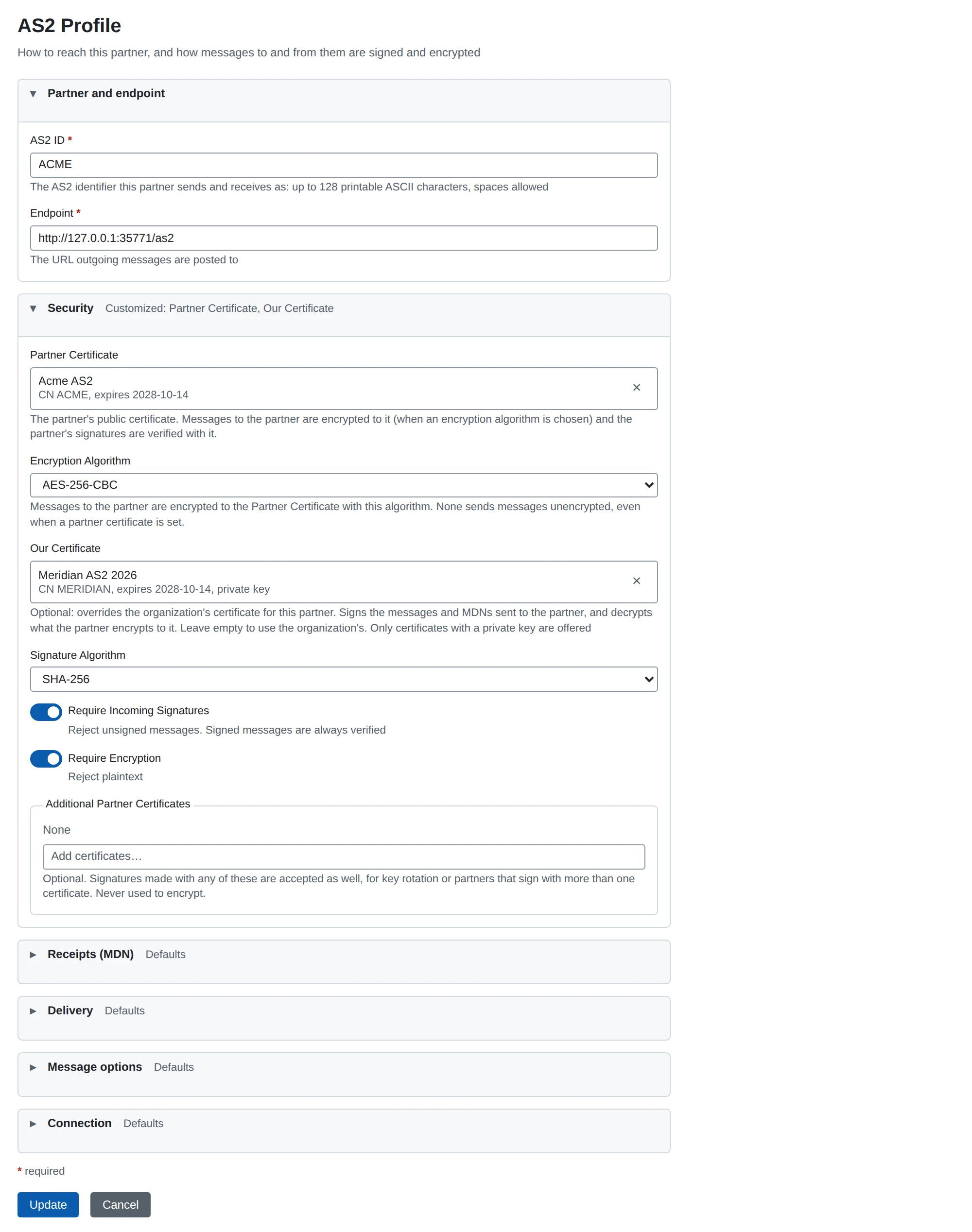
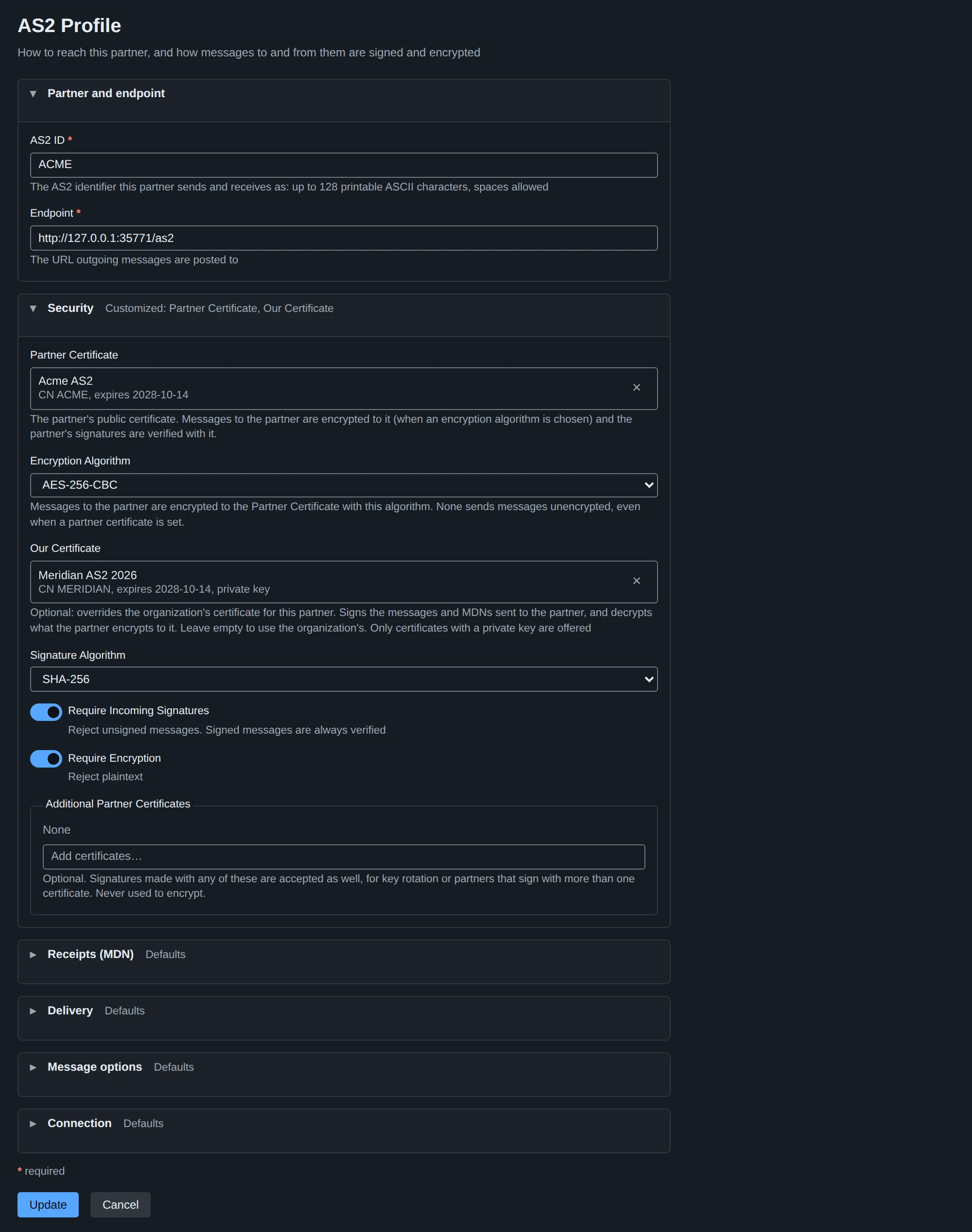
Sections of the form
The form has six sections:
- Partner and endpoint and Security are always open.
- Receipts (MDN), Delivery, Message options and Connection stay closed while they hold their defaults.
Each section title says “Defaults”, or “Customized: …” with the settings that differ.
Defaults of a new profile
A new profile starts with these settings, in the form and in the REST API:
| Setting | Default |
|---|---|
| Compress Outgoing Messages | on |
| Encryption Algorithm | AES-256-CBC |
| Signature Algorithm | sha256 |
| Require Incoming Signatures | on |
| Require Encryption | on |
| Request MDN | Synchronous |
| MDN Signature Algorithm | sha256 |
Some rules follow from these defaults:
- Encryption needs a Partner Certificate. Choose one, or set Encryption Algorithm to None.
- To turn a protection off, choose None in the list or turn the switch off.
In the REST API, send
""orfalse. - Defaults only apply when you create a profile. An edit shows what is stored. A REST update that leaves out a property keeps its stored value.
- Requesting a receipt needs MDN Notification To on your organization’s AS2 profile.
Partner and endpoint
| Setting | What it does | Default |
|---|---|---|
| AS2 ID | Required. The partner’s AS2 ID. | none |
| Endpoint | Required. The URL your messages are posted to, for example https://as2.partner.example/as2. | none |
See AS2 overview for which characters an AS2 ID may contain.
Security and receipts
The Security section sets signing, encryption and the partner’s certificates. See AS2 security.
The Receipts (MDN) section sets whether you ask the partner for a receipt, and how. See Receipts (MDNs).
Delivery
These settings replace the AS2 sender’s own settings for this partner. Leave a box empty to use the sender’s setting; the placeholder says which. See AS2 sender.
| Setting | What it does | Range | Empty means |
|---|---|---|---|
| Max Delivery Attempts | How often a message is tried, the first attempt included. 1 never resends. | 0-100 | The sender’s Max Retries + 1 |
| Resend Interval (seconds) | A fixed wait between attempts. | 0-86400 | The sender’s growing wait |
| Connection Timeout (seconds) | How long one attempt may take. | 0-3600 | The sender’s Delivery Timeout |
Message options
| Setting | What it does | Default |
|---|---|---|
| Subject | The Subject header of your messages. | empty |
| Compress Outgoing Messages | Compress messages before signing and encrypting them. | on |
| Compress After Signing | Sign first, then compress the signed message. Some partners expect this order. Only for messages that are both compressed and signed. | off |
| Payload Content Type | The content type the file is sent as, for example application/EDI-X12. | application/xml |
| Content Type by File Extension | One .extension = type/subtype per line. See below. | empty |
| Maximum Message Size (MiB) | The largest message you accept from this partner, 0-2048. | the organization’s limit |
| Repeated File Names | What happens when the partner sends a file name again. See Messages sent twice. | Accept (do not check file names) |
| Repeated File Name Window (hours) | How long a file name counts as received, 0-8760. | 24 |
Incoming messages are read whether they are compressed before or after signing. For the size limit, see Message size.
File names and content types
When you send a message, MicroB2B includes the original file name. The partner’s software can use it to save the file under the same name. A name with characters outside ASCII is sent both as an ASCII approximation and exactly.
When you receive a message, MicroB2B reads the file name the partner included.
It keeps only the last part of a path, so ../../etc/passwd becomes passwd.
It drops a name that is not usable after that.
Content type. Some partners want a specific content type per kind of file. List them in Content Type by File Extension, one per line:
.edi = application/edifact
.x12 = application/EDI-X12
A file whose name ends in a listed extension is sent as that type. Case does not matter, and each extension may be listed once. Any other file is sent as the Payload Content Type.
Connection
| Setting | What it does | Default |
|---|---|---|
| HTTP Basic Username | Sent as HTTP basic authentication with every message. | empty (none) |
| HTTP Basic Password | Required with a username. | empty |
| Additional HTTP Headers | One Name: value per line, sent with every message. | empty |
| Partner’s TLS Server Certificates | Extra certificates to trust for the partner’s HTTPS endpoint. | none |
| Accept the pinned certificate whatever host it names | Skip the host name check for a listed certificate. | off |
| Our TLS Client Certificate | Presented when the endpoint asks for a client certificate. | none |
The three TLS settings are explained in AS2 security.
The password and header values are never shown again after you save them.
A saved header shows as Name: ********.
It keeps its value as long as you leave that line in place.
To keep the password, leave the box empty when you edit the profile.
Changing the Endpoint clears them. If you change the Endpoint, you must enter the password and header values again. This stops a saved secret from being sent to a new address.
Headers you cannot set. A Host line replaces the Host header.
Headers that AS2 itself sets are refused, such as Content-Type, AS2-* and Authorization.
So are headers the connection sets on every request, such as User-Agent, Expect, Proxy-* and Connection.
Test the profile
On the partner’s page, the AS2 section has a Test Connection link. See Testing a partner.