Certificates
This page explains how MicroB2B stores certificates and keys, and how you upload, replace and delete them. AS2 uses certificates to sign, encrypt and check messages, and an AS2 receiver can use one for HTTPS.
Where certificates live
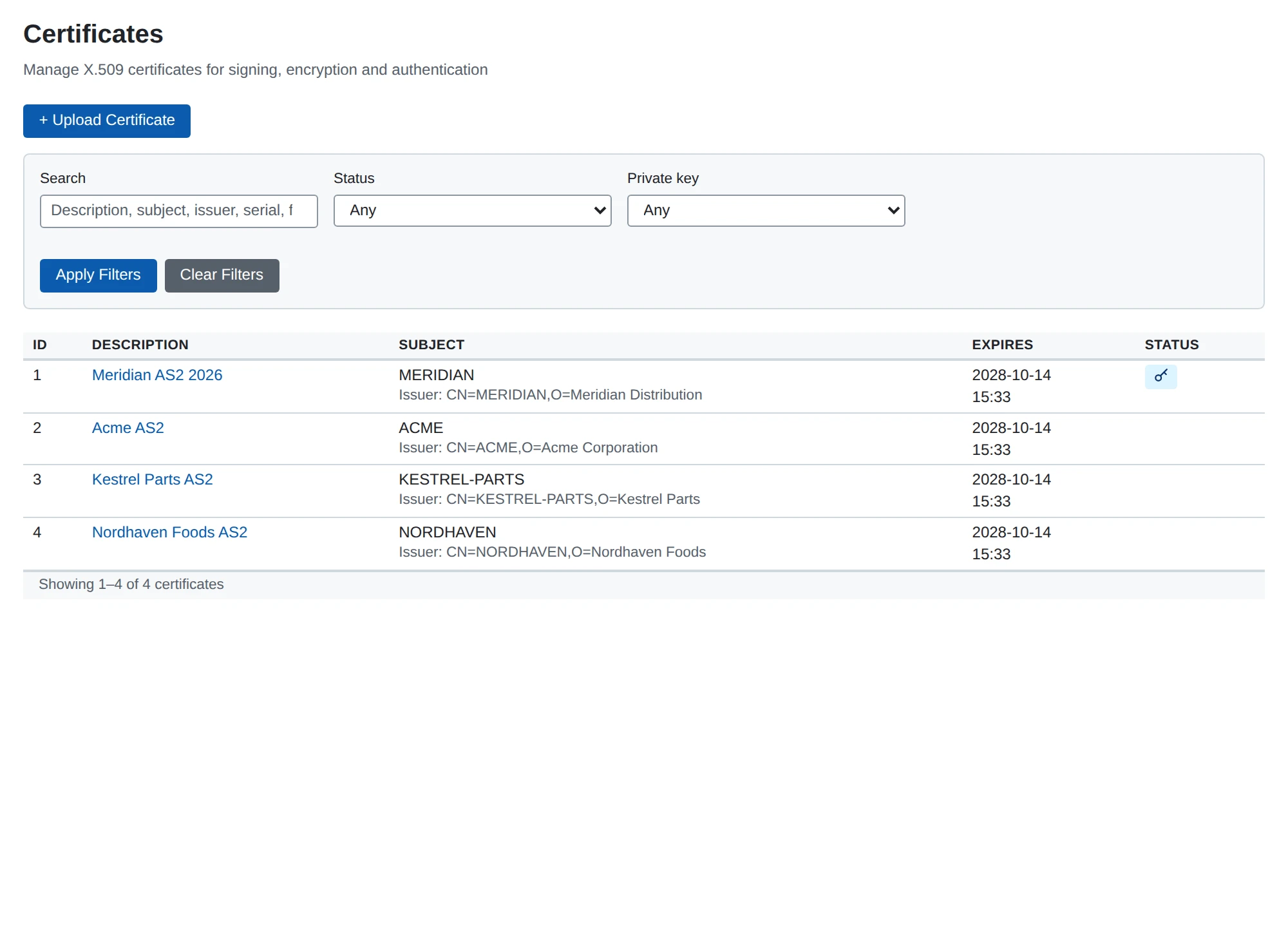
MicroB2B keeps all certificates in one place: Certificates in the menu. AS2 profiles and receivers do not store certificates themselves. They point to a stored certificate. So you upload a certificate once and use it in as many profiles as you need.
MicroB2B identifies a certificate by its SHA-256 fingerprint. The same certificate is stored only once. Uploading it a second time is refused with a message that names the stored one.
Ours and the partner’s
On an AS2 profile, each certificate field says whose certificate it is:
- Our … fields are your own certificates. MicroB2B needs the private key for these, so their pickers only offer certificates with a stored key. They sign what you send and decrypt what partners encrypt to you.
- Partner … fields are your partner’s public certificates. Any stored certificate can be chosen. They check your partner’s signatures and encrypt what you send to them.
You never need a partner’s private key. You never send your private key to anyone.
Upload a certificate
- Go to Certificates and choose + Upload Certificate.
- Choose the certificate file. MicroB2B detects the format from the content.
- If the private key is in a separate file, choose it under Separate private key file.
- For a PKCS#12 file (
.p12or.pfx), enter its password. - Enter a description, for example “ACME signing certificate 2026”.
- Choose Upload.
MicroB2B accepts these formats:
- PEM or DER certificates.
- PEM bundles with several certificates and keys, in any order.
- PKCS#12 files (
.p12,.pfx) with their password. - PEM or DER private keys (PKCS#8, PKCS#1 and SEC1).
MicroB2B pairs each key with the certificate that holds its public key. A single certificate with a description is imported at once. Anything else shows a selection page first. That happens with several certificates, a key that matches no certificate, or no description. On the selection page you choose what to import and name each certificate.
After the upload you can only change the description.
Private keys
MicroB2B encrypts every private key with the master key SECRETS_KEY before it stores it.
The REST API never returns a private key.
A key is decrypted only at the moment MicroB2B signs or decrypts with it.
See Secrets for how to keep the master key safe.
Choose certificates in a form
Every certificate field shows the chosen certificates. For each it shows the description, common name, expiry date and whether the key is stored. Each has a Remove button.
To add one, type in the search box. It matches the description, common name, subject, serial number or the start of the fingerprint. It offers at most 20 matches, so type more to narrow it down.
Expiry
The certificate monitor checks all certificates every hour. It raises an alert for each certificate that expires within 30 days, and another when one has expired. It logs them too. See Notifications to have alerts sent to you.
You can filter the certificate list by expiry state and by whether the key is stored.
The REST API lists certificates that expire soon with GET /api/v1/certificates/expiring?days=N.
The certificate’s page
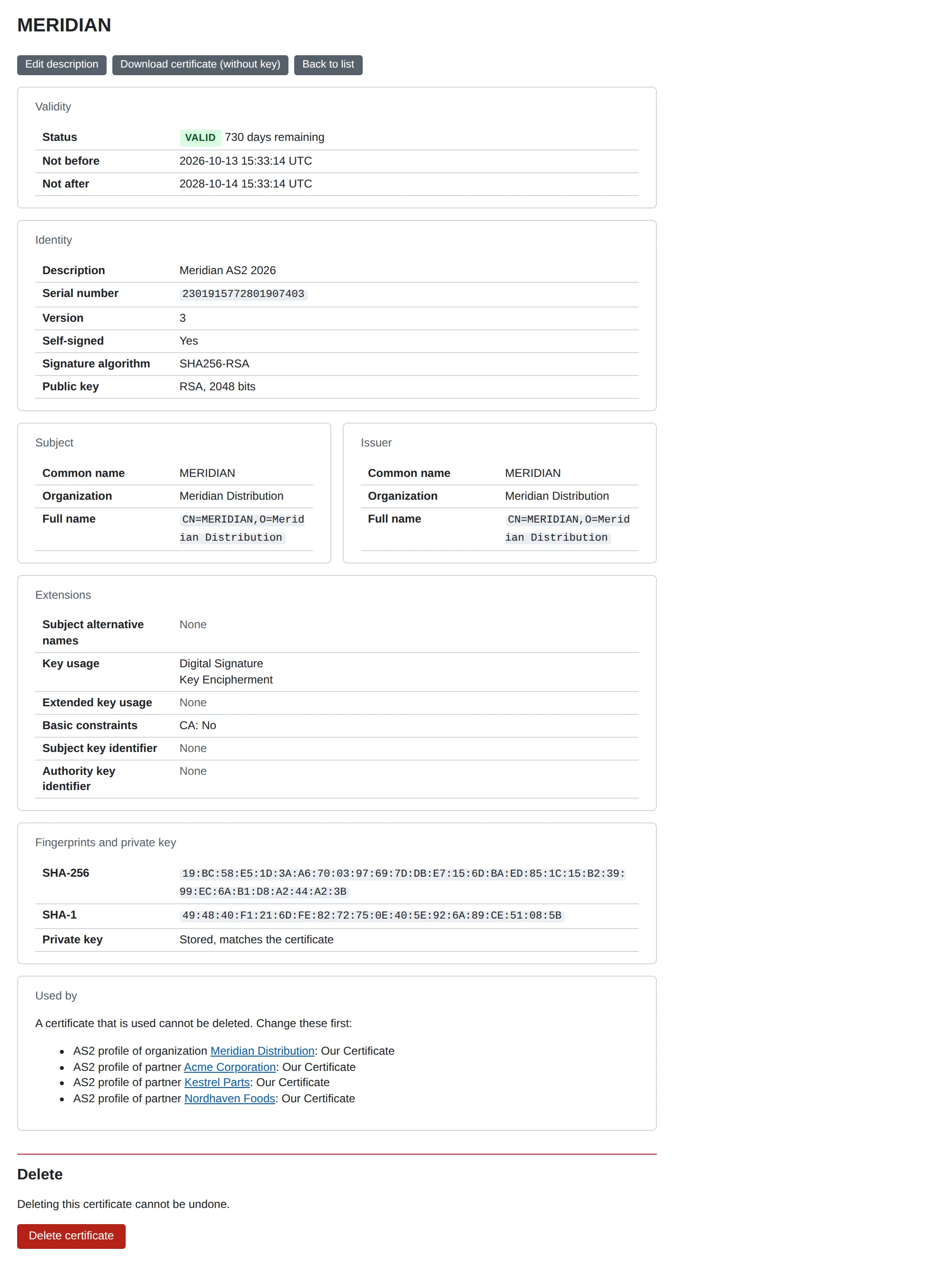
The page shows the certificate’s validity, identity, subject, issuer and fingerprints. It says whether the private key is stored and matches the certificate. Download certificate (without key) gives you the public certificate to send to a partner. Used by lists every profile and receiver that uses the certificate.
A certificate in use cannot be deleted
You cannot delete a certificate that a profile or receiver uses.
The certificate’s page lists them under Used by.
Each entry links to the edit page and names the fields that use the certificate.
Delete is refused with a message that names them.
In the REST API, DELETE /api/v1/certificates/{id} answers 409 CERTIFICATE_IN_USE.
Choose another certificate in those places first, then delete it.
Replace an expiring certificate
To replace a partner’s certificate:
- Upload the partner’s new certificate.
- Add it to the partner profile’s Additional Partner Certificates. Signatures with either certificate are accepted.
- When the partner has switched, make the new one the Partner Certificate and remove the old one.
- Delete the old certificate.
To replace your own certificate without a fixed cut-over date, follow Our certificates and rollover.
Make a test certificate
For a test setup you can make a self-signed certificate with OpenSSL:
openssl req -x509 -newkey rsa:2048 -nodes -keyout mycompany.key -out mycompany.crt \
  -days 365 -subj "/CN=MYCOMPANY"
Upload mycompany.crt with mycompany.key as its separate private key file.
For a real partner, use a certificate your partner accepts.