Notifications
MicroB2B raises an alert when something needs a person’s attention, and a notifier posts it to a webhook so nobody has to watch the UI or the logs. This page is for operators: how to set a notifier up, what each setting does, what is recorded, and what is and is not sent.
What raises an alert
| Code | Severity | When |
|---|---|---|
message_failed | critical | a message reaches the status Error: a delivery failed for good (including an HTTP delivery given up on) or MicroB2B itself failed to take a message in. A message turned down on its merits (status Refused) raises nothing |
async_mdn_failed | warning | an asynchronous MDN could not be delivered and will not be tried again |
certificate_expiring | warning | a certificate expires within 30 days |
certificate_expired | critical | a certificate has expired |
plugin_failed | critical | a plugin could not be started |
file_unroutable | warning | a polled file names no known partner and was moved to unroutable/ |
delivery_stalled | critical | a delivery was announced to its target the maximum number of times (System > Settings > Delivery, default 5) and the target never took it up; one alert per delivery, with the target, the number of announcements and the parties in its details, and the dedupe key delivery_stalled:<target> so the cooldown and the rate limit of a notifier fold a stopped target’s backlog into one notification. Starting the target takes the delivery up |
message_not_routed | warning | a message matched no route and was settled without a delivery |
api_token_expiring | warning | a working API token of an enabled service account expires within 14 days; again once a day while it does |
An alert carries a severity, a one-line summary, a few short details (ids, partner and instance names, a short error text), a dedupe key (the same for alerts about the same ongoing problem) and the path of the page about it. It never carries payload bytes, headers, keys, passwords or a URL.
Webhook notifiers
A notifier is a plugin instance of type notification-webhook. Create one under Plugins > Webhook Notifiers in the web UI (or with the REST API, type=notification-webhook); it starts when enabled, like every plugin. Any number of notifiers can run side by side, for example one for the on-call chat with critical alerts only and one for a mailbox gateway with everything.
Slack
- In Slack, create an app (api.slack.com/apps), switch on Incoming Webhooks and add a webhook to the channel. Slack gives you a URL such as
https://hooks.slack.com/services/T000/B000/XXXX. - In MicroB2B, create a notifier, choose the format Slack (incoming webhook), paste the URL into Webhook URL and save.
- Press Send test notification on the notifier’s edit page. A message labelled TEST appears in the channel, and the page shows the outcome.
Mattermost, Rocket.Chat and Zulip accept Slack incoming webhooks too; they show the message’s text line (the colour and the button are Slack’s).
Microsoft Teams
- In Teams, open the channel’s … menu, choose Workflows and the template Post to a channel when a webhook request is received (the Office 365 connector webhooks are retired; this is the Workflows replacement). Finish the wizard and copy the URL it shows (
https://prod-xx.<region>.logic.azure.com/workflows/...). - Create a notifier with the format Microsoft Teams (Workflows webhook) and paste the URL.
The message is an Adaptive Card (version 1.4): a bold title coloured by severity (red for critical, amber for warning, blue for info), the summary, a list of the details and an Open in MicroB2B button when the notifier has a link base. Text from alerts is shown as plain text (Markdown characters are escaped). A card stays under about 24 KB: details that do not fit are replaced by “… and N more”. A workflow that rejects the card answers 4xx, which ends the delivery and shows in the notification log.
Discord
- In Discord open the channel’s Edit Channel > Integrations > Webhooks, create a webhook and Copy Webhook URL (
https://discord.com/api/webhooks/<id>/<token>). - Create a notifier with the format Discord (webhook) and paste the URL.
The message is one embed: the title and a colour bar by severity, the summary as description, the details as inline fields, a timestamp, a footer naming the notifier and a link in the title when the notifier has a link base. Discord’s limits are kept (title 256, description 4096, 25 fields, field name 256, value 1024, 6000 characters in all); what does not fit is replaced by a field “… and N more”. Every message sets allowed_mentions to an empty parse list, and the text is escaped, so text from an alert can never mention @everyone, @here, a role or a user.
Google Chat
- In a Chat space open Apps & integrations > Webhooks, add a webhook and copy its URL (
https://chat.googleapis.com/v1/spaces/.../messages?key=...&token=...). Webhooks need a Google Workspace account. - Create a notifier with the format Google Chat (webhook) and paste the URL.
The message is a card (cardsV2): the title, the severity in its colour, the summary, the details as labelled lines and an Open in MicroB2B button when there is a link base, plus a plain-text fallback that Chat shows in notifications. Text in the card is HTML-escaped (the card text accepts a small HTML subset), text in the fallback has its formatting characters neutralised. A message stays under 28 KB; what does not fit is replaced by “… and N more”.
ntfy
- Pick a topic name that is hard to guess (on ntfy.sh anyone who knows a topic can read and publish to it) or use a self-hosted server with access control.
- Create a notifier with the format ntfy (topic URL) and the topic URL as Webhook URL (
https://ntfy.sh/<topic>orhttps://ntfy.example.com/<topic>). The URL is write-only like every webhook URL. - For a topic that needs a login, add
Authorization: Bearer tk_...(an access token) orAuthorization: Basic <base64 of user:password>to Additional HTTP Headers; they are write-only too. There is no other field for it.
The request body is the message as plain text: the summary, then one key: value line per detail (at most 4000 bytes; the rest becomes “… and N more”, so ntfy never turns it into an attachment). The metadata is in headers: Title (severity and what happened), Priority (info 3 = default, warning 4 = high, critical 5 = urgent), Tags (an emoji: information_source, warning, rotating_light; test_tube is added to a test), and Click (the page about the alert, when there is a link base). Header values never contain line breaks, and anything that is not ASCII is RFC 2047 encoded (Click: percent-encoded). The format sets these headers itself, so an additional header named Title, Priority, Tags or Click is replaced by it; other ntfy headers (Delay, Email, Actions) can be set in Additional HTTP Headers.
A receiver of your own (n8n, Zapier, Make, Node-RED, a script)
Choose the format Generic JSON and point the URL at your receiver. Every notification is one POST of this document (Content-Type: application/json):
{
  "schema_version": 1,
  "notifier": "notify_ops",
  "id": "0b8f4c1e-4d3a-4f6f-8a57-2f3b1a9c5e01",
  "time": "2030-01-02T03:04:05Z",
  "severity": "critical",
  "code": "message_failed",
  "subject": {"kind": "message", "id": "7d4f5a52-6a3b-4d0e-9b53-0d6c5d1f9e11", "name": "acme to local"},
  "summary": "Message from acme to local failed",
  "details": [{"key": "from", "value": "acme"}, {"key": "error", "value": "signature verification failed"}],
  "dedupe_key": "message_failed:message:7d4f5a52-6a3b-4d0e-9b53-0d6c5d1f9e11",
  "link_path": "/ui/messages/7d4f5a52-6a3b-4d0e-9b53-0d6c5d1f9e11",
  "link": "https://microb2b.example.com/ui/messages/7d4f5a52-6a3b-4d0e-9b53-0d6c5d1f9e11"
}testis present andtruefor a test notification.linkis present only when the notifier has a Link Base URL;link_pathis always the path.groupis present for a summary of held-back alerts (see grouping below):{"count": 7, "alerts": [{id, time, severity, code, summary, link}, ...]}with the first 20. The summary’s ownseverityandcodeare those of the most urgent alert in it.schema_versionchanges only when a property is renamed, removed or given another meaning. New properties may be added within a version, so ignore properties you do not know.- Answer with any 2xx. Anything else is a failure (see delivery).
Signing. Set a Signing Secret and every request carries X-MicroB2B-Signature: t=<unix seconds>,v1=<hex>, where v1 is the HMAC-SHA256, keyed by the secret, of the text <t>.<raw request body>. A receiver recomputes it, compares in constant time and refuses a t that is too old (five minutes is a good tolerance), which stops replays. In Python:
import hmac, hashlib, time

def verify(secret: bytes, header: str, body: bytes, tolerance=300) -> bool:
    parts = dict(p.split("=", 1) for p in header.split(","))
    t, v1 = parts["t"], parts["v1"]
    if abs(time.time() - int(t)) > tolerance:
        return False
    expected = hmac.new(secret, t.encode() + b"." + body, hashlib.sha256).hexdigest()
    return hmac.compare_digest(expected, v1)
Only formats that sign use the secret; the chat and push formats do not, because those services authenticate by the secrecy of the URL.
Settings
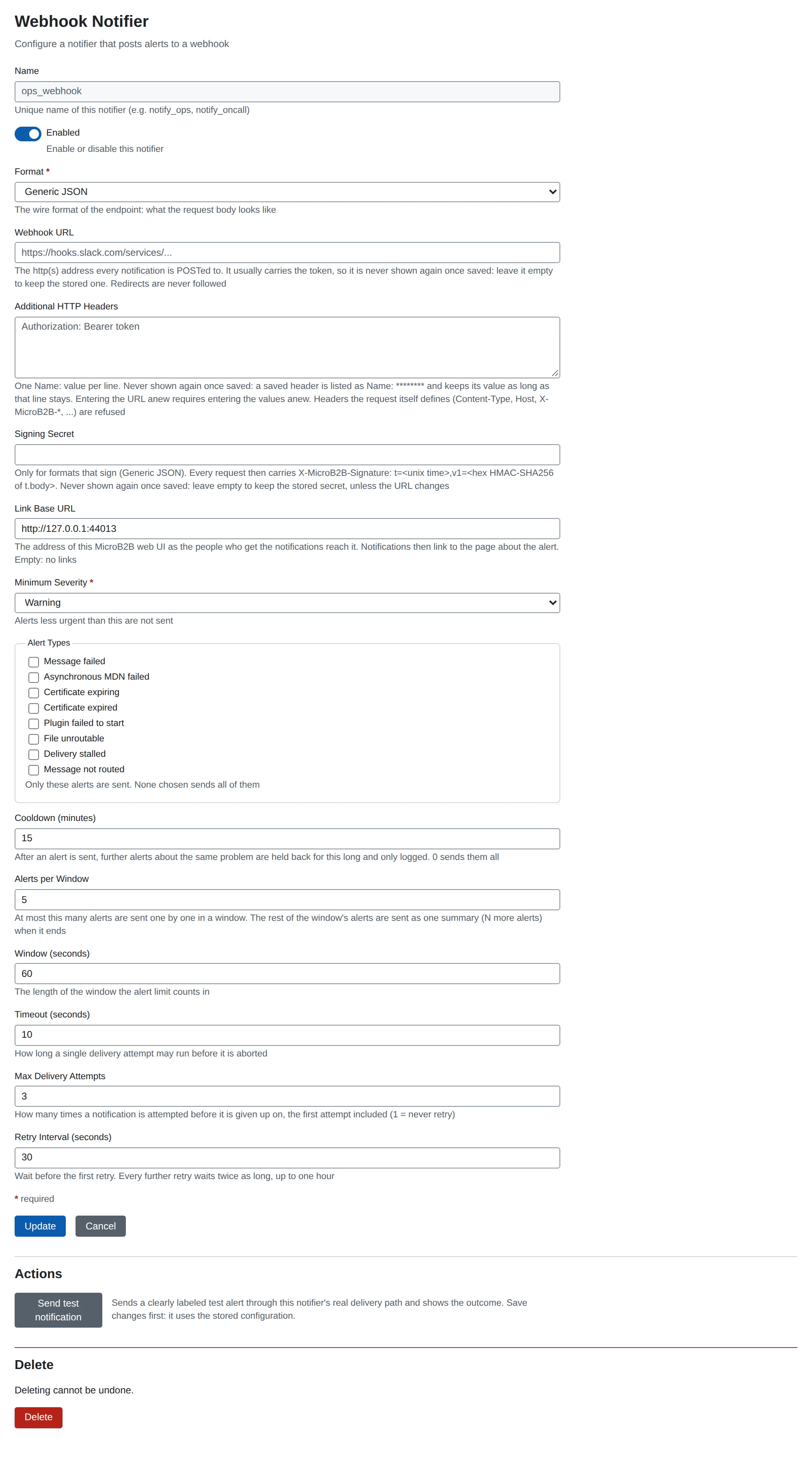
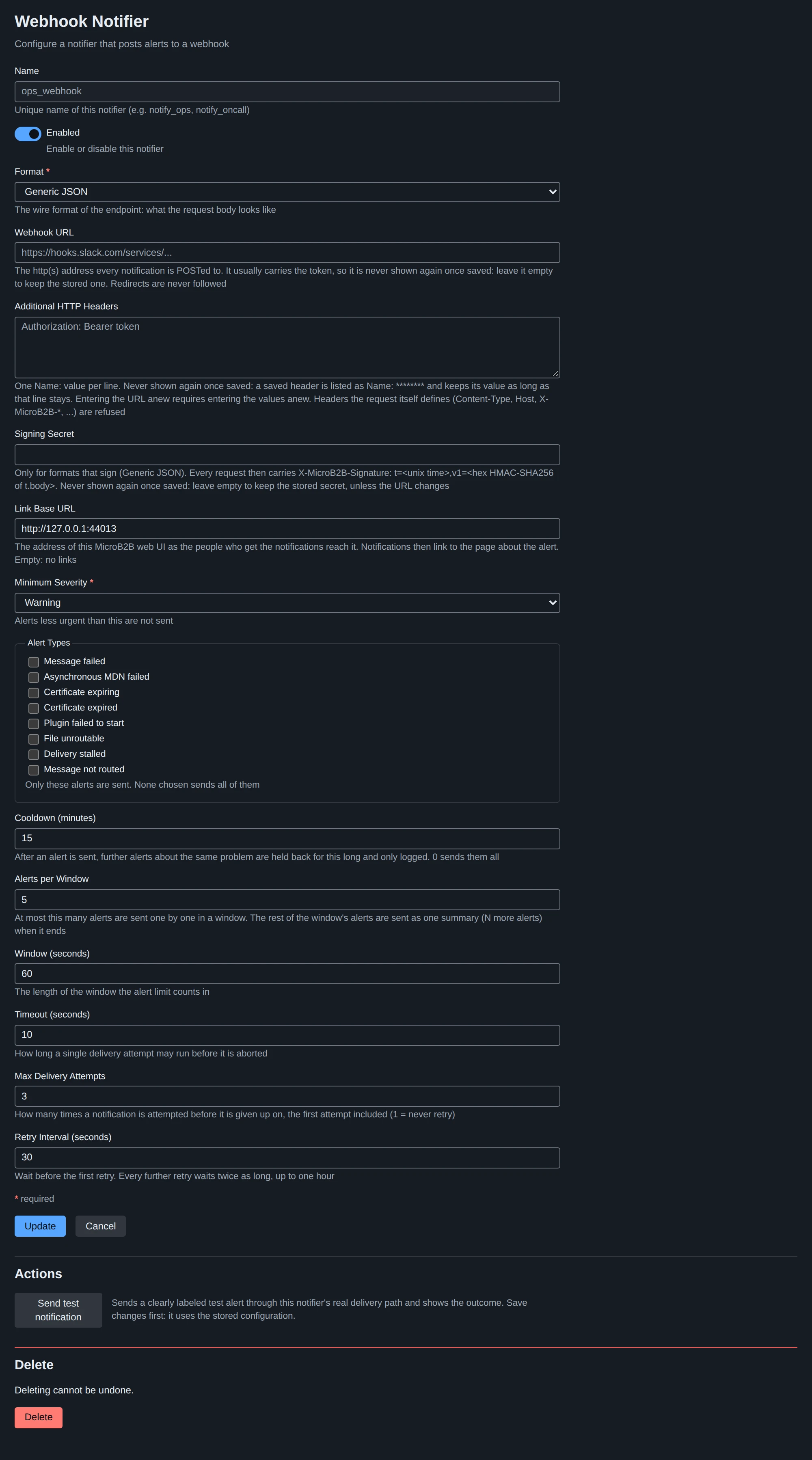
| Setting | What it does |
|---|---|
| Name | Lower case letters, digits, _ and -. Names the instance in the CLI, the log and the notification log. |
| Enabled | A disabled notifier does not run. |
| Format | The wire format of the endpoint (Generic JSON, Slack, Microsoft Teams, Discord, Google Chat, ntfy). |
| Webhook URL | Where every notification is POSTed (http or https, no user name or password in it). It usually carries the token, so it is write-only: never shown again once saved; leave it empty on an edit to keep the stored one. Redirects are never followed. |
| Additional HTTP Headers | Name: value lines, for an Authorization header and the like. Write-only: saved headers are listed as Name: ********. Headers the request defines itself (Content-Type, Host, User-Agent, X-MicroB2B-*, …) and those the transport and the trace context own (Expect, Proxy-*, Connection, Traceparent, …) are refused. |
| Signing Secret | See above. Write-only. |
| Link Base URL | The address of this MicroB2B web UI as the recipients reach it (https://microb2b.example.com). With it a notification links to the page about the alert; without it there are no links. It is a setting of the notifier, not read from the server’s own configuration, because a notifier may run in another process. |
| Minimum Severity | Alerts below it are not sent (default Warning). |
| Alert Types | Only these alerts are sent. None chosen sends all of them. |
| Cooldown (minutes) | After an alert is sent, further alerts with the same dedupe key (the same ongoing problem) are held back for this long and recorded as suppressed_cooldown (default 15; 0 = no cooldown). |
| Alerts per Window / Window (seconds) | At most this many alerts are sent one by one in a window (default 5 per 60 seconds). The rest of the window’s alerts are not sent individually; when the window ends they go out as one summary (“N more alerts were held back by the rate limit”, with a count per type), and each is recorded as grouped. This keeps a storm from flooding the channel. |
| Timeout / Max Delivery Attempts / Retry Interval | One attempt may run this long (default 10 s); an alert is tried at most this many times (default 4); the wait before the first retry is the interval (default 10 s) and doubles for every further retry, up to one hour. |
A new or changed notifier takes effect when its plugin starts, like every plugin instance: restart the process (see when changes take effect). Send test notification needs the notifier to be running, so restart first after creating or changing one.
The cooldown and grouping state is kept in memory by each running notifier; a restart forgets it, so a problem that is still there may be notified once more.
The secrets follow the URL
Whoever can edit a notifier could point its URL at a server of their own, so a stored header or signing secret is only kept while the URL is unchanged. When you enter a new URL, enter the headers and the signing secret again too; the form and the REST API both refuse the save otherwise.
Delivery
A notification is one POST per attempt. A 2xx answer is delivered. A transport error, a timeout, a 5xx answer, or 408, 425 or 429 is retried, up to Max Delivery Attempts, with a doubling wait. Any other answer (the rest of 4xx, and a redirect) ends the delivery as failed, since trying again will not help. Notifications are sent one at a time, the earliest due first. A notification waits in the notification log, so one that is waiting for its retry when its notifier stops is sent when the notifier starts again; one that has waited more than 24 hours since it was accepted is not sent and ends as failed.
A notifier never raises an alert of its own. If the endpoint is down, that is a line in the log and a failed row in the notification log, not another alert: it would be routed to the same broken channel. (If a notifier cannot even start, the plugin manager’s plugin_failed alert is delivered by the other notifiers.) Watch the failed rows, or use a second notifier on another channel.
Send test notification
The edit page of an enabled notifier has Send test notification; the REST equivalent is POST /api/v1/plugins/configs/notification-webhook/{name}/test. It sends a clearly labelled info alert (code notification_test) through the notifier’s real path (format, headers, signature), once, ignoring the filter, the cooldown and the rate limit, and reports the outcome. It uses the stored configuration, so save first. If the notifier does not answer in time it is enabled but not running (its process is down, or it failed to start). The test is recorded in the notification log, marked as a test.
The notification log
Every alert a notifier kept or held back is a row of the notification log, one per alert and notifier: the alert’s id, time, severity, code, subject, summary, details, dedupe key and link; the notifier and format; the outcome; the number of attempts; the last error; and when it was delivered.
| Outcome | Meaning |
|---|---|
queued | accepted, waiting for its next attempt (shown as next_attempt_at in the REST API) or in the middle of one |
delivered | the endpoint answered 2xx |
failed | given up on; last_error says why (“the endpoint answered 403 Forbidden”, “no answer within 10s”, “the request failed: connection refused”, “interrupted by shutdown …”) |
suppressed_cooldown | held back by the cooldown |
grouped | held back by the rate limit and sent as part of a summary |
Alerts a notifier’s filter drops are not recorded. A row that is still queued when its notifier stops stays queued and is sent when the notifier starts again (or ends as failed when it is older than 24 hours by then).
Retention. Rows older than 30 days are removed, and the oldest rows beyond 10,000; each running notifier prunes at start and every hour. The log never contains the webhook URL, a header, the body that was sent or what the endpoint answered.
The Notifications page
System > Notifications (/ui/notifications) shows the notification log, newest alert first, 20 rows to a page. A row has the time the alert was raised, its severity, type and summary (the summary opens the page of that notification), what it is about (a link to the message, certificate or other page, when there is one), the notifier, the outcome (colored like the badges elsewhere), the number of attempts and the last error. The last error is cut off at one line; click it to show all of it.
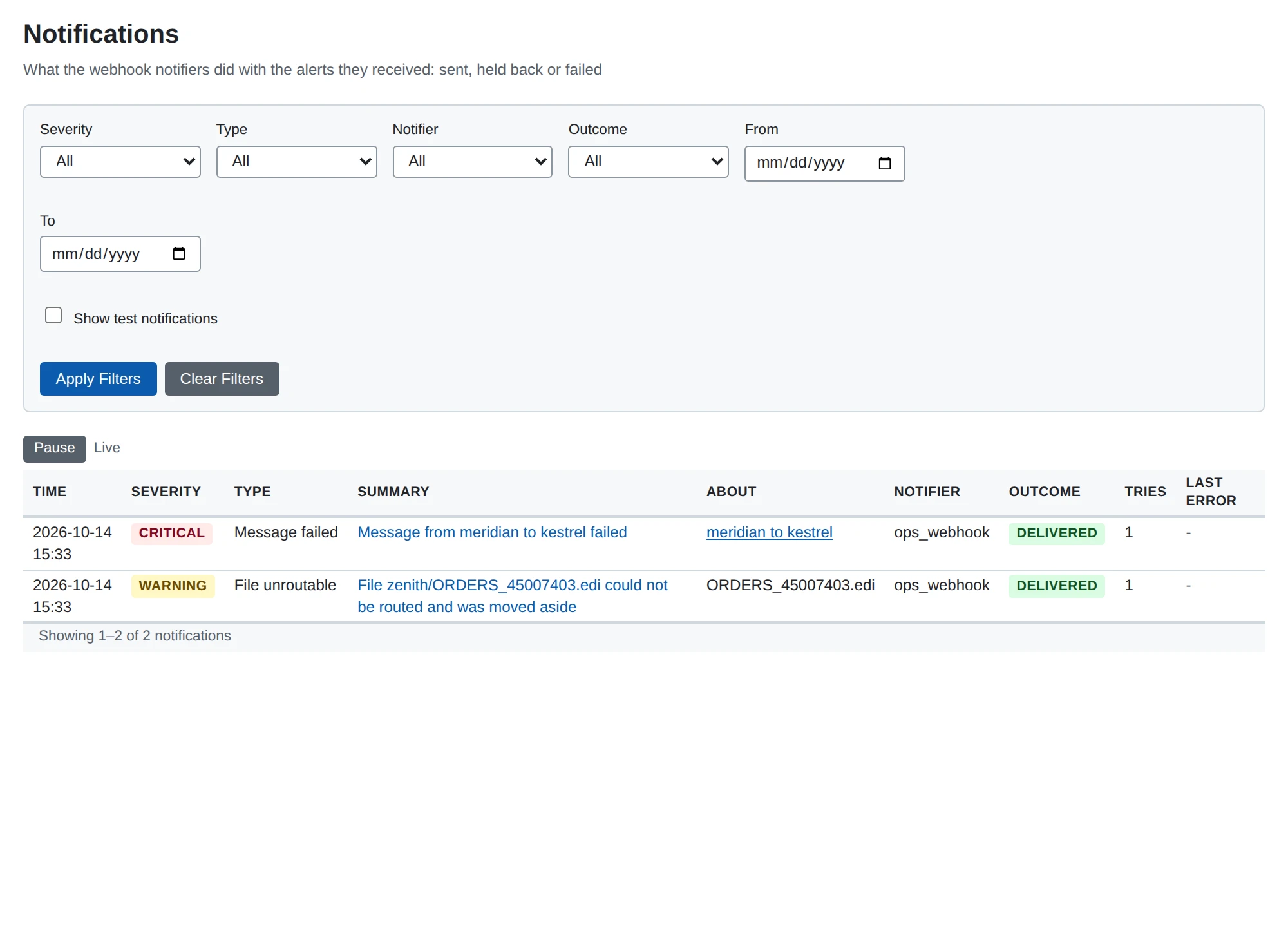
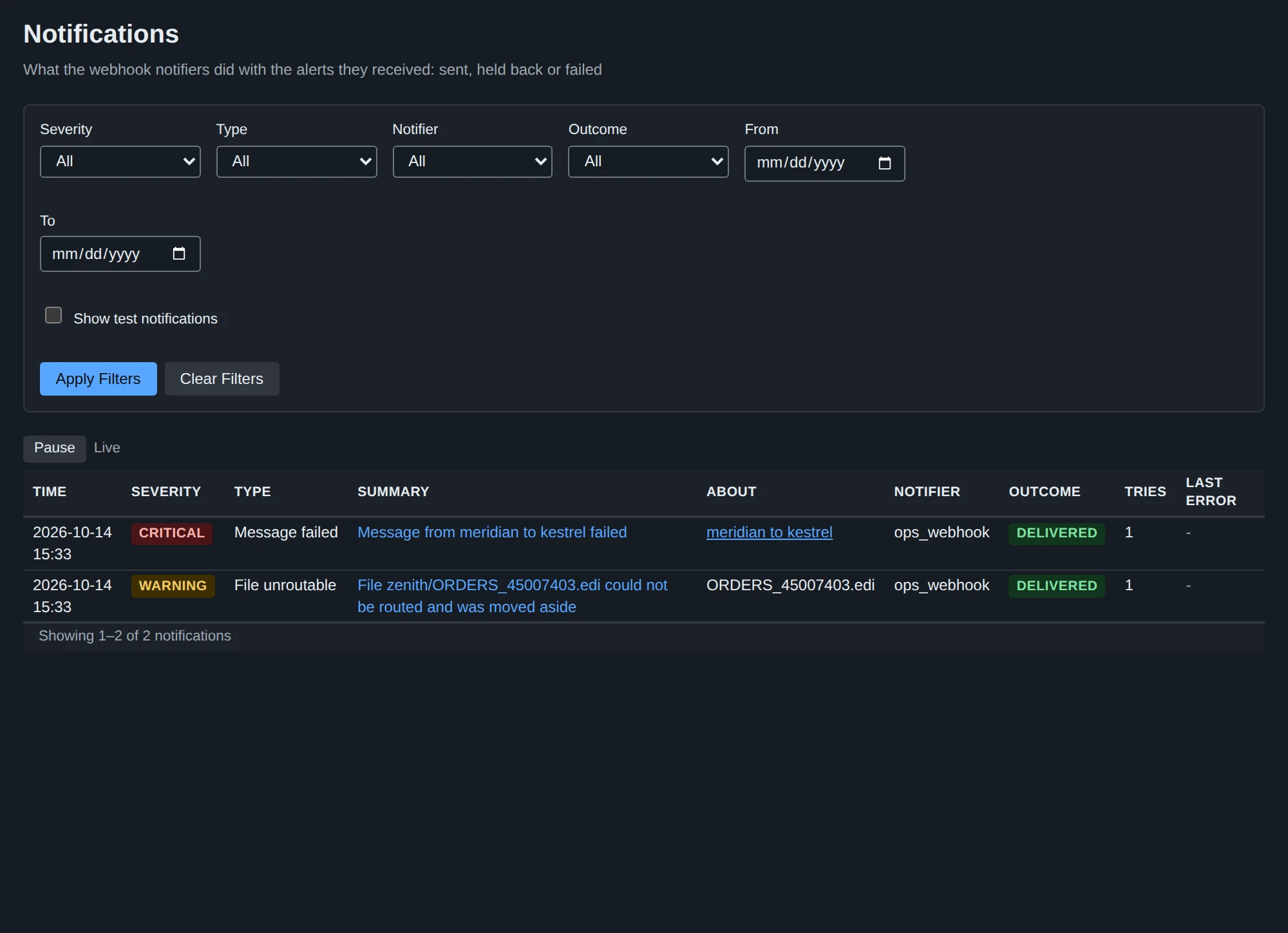
Filters: severity, type (alert code), notifier, outcome, a date range, and Show test notifications (the notifications of the test button are hidden unless it is ticked). A date range includes the whole of the last day. The same filters, with the same rules, are the parameters of the REST list below; a value that is not acceptable is refused rather than ignored.
The page of one notification shows every field of the alert (type, time, what it is about, details, dedupe key, alert id) and of its delivery (notifier, format, outcome, attempts, the whole last error, when it was accepted and delivered).
Live updates. The first page of the list follows the log: a notification that is new, or changes (queued, then delivered or failed) appears at the top or updates in place, if it matches the filters. Pause holds the updates back and applies them when you resume. If the page was disconnected for longer than the server can catch up, it says so and offers a reload; otherwise it reconnects and picks up what it missed. Later pages and the page of one notification do not update by themselves.
Dashboard card. The dashboard has an Alerts card: how many critical alerts the last 24 hours had (test notifications are not counted, and an alert several notifiers received counts once) and the latest three, each a link to its notification. It updates live with the dashboard. The card, like the page, only knows the alerts a notifier received: without a notifier it shows 0.
REST. GET /api/v1/notifications returns the same list as JSON; see the API reference.
Security notes
- The webhook URL, header values and signing secret are write-only everywhere: the form, the REST API, logs and the notification log never show them. They are stored in the database as is, like every other plugin setting, so protect the database and its backups.
- A target is chosen by whoever can configure plugins (trusted), but the notifier still only POSTs, refuses redirects, enforces a timeout and does not keep or log what the endpoint answers.
- Error texts say what went wrong, not where: a dial error reads
connection refused, never the address. - Text in an alert can come from a partner (a file name, an error message). The chat formats make it inert (the characters the service interprets are escaped or sent as plain text, Discord never mentions anyone, ntfy sends a plain-text body and keeps line breaks out of its headers), and the generic format carries it as JSON strings; a receiver should treat it as untrusted text too.
- Use https URLs and, for the generic format, verify the signature.