Notifications
MicroB2B raises an alert when something needs your attention. A notifier sends the alert to a chat channel, a push service or a system of your own. Then nobody has to watch the web UI or the logs. This page explains the alerts, how to set up a notifier, and the notification log.
What raises an alert
| Alert type | Code | Severity | When |
|---|---|---|---|
| Message failed | message_failed | critical | A message reached the status Error: a delivery failed for good, or MicroB2B could not take a message in. A refused message raises nothing. |
| Asynchronous MDN failed | async_mdn_failed | warning | MicroB2B could not deliver a receipt (MDN) it owed a partner, and gave up. |
| Certificate expiring | certificate_expiring | warning | A certificate expires within 30 days. |
| Certificate expired | certificate_expired | critical | A certificate has expired. |
| Plugin failed to start | plugin_failed | critical | A plugin instance could not start. |
| File unroutable | file_unroutable | warning | A file poller found a file for an unknown party and moved it to unroutable/. |
| Delivery stalled | delivery_stalled | critical | A target never took up a delivery. See Messages. |
| Message not routed | message_not_routed | warning | A message matched no route. |
| API token expiring | api_token_expiring | warning | An API token of an enabled service account expires within 14 days. Repeated once a day. |
An alert has a severity, a one-line summary, a few short details and a link. Alerts about the same ongoing problem share a dedupe key. An alert never contains message content, headers, keys, passwords or URLs.
Set up a notifier
A notifier is a plugin instance. You can run as many as you like. For example, one for the on-call chat with critical alerts only, and one for a mail gateway with everything.
- Go to Plugins > Webhook Notifiers and click + New Webhook Notifier.
- Enter a Name, such as
notify_ops. - Choose the Format of the service you send to.
- Paste the Webhook URL.
- Enter the Link Base URL: the address people use to open MicroB2B, such as
https://microb2b.example.com. - Click Create.
- Restart MicroB2B so the notifier starts.
- Open the notifier again and click Send test notification.
For the steps in Slack, Teams, Discord, Google Chat and ntfy, see Notification channels. For a system of your own, see Notification webhooks.
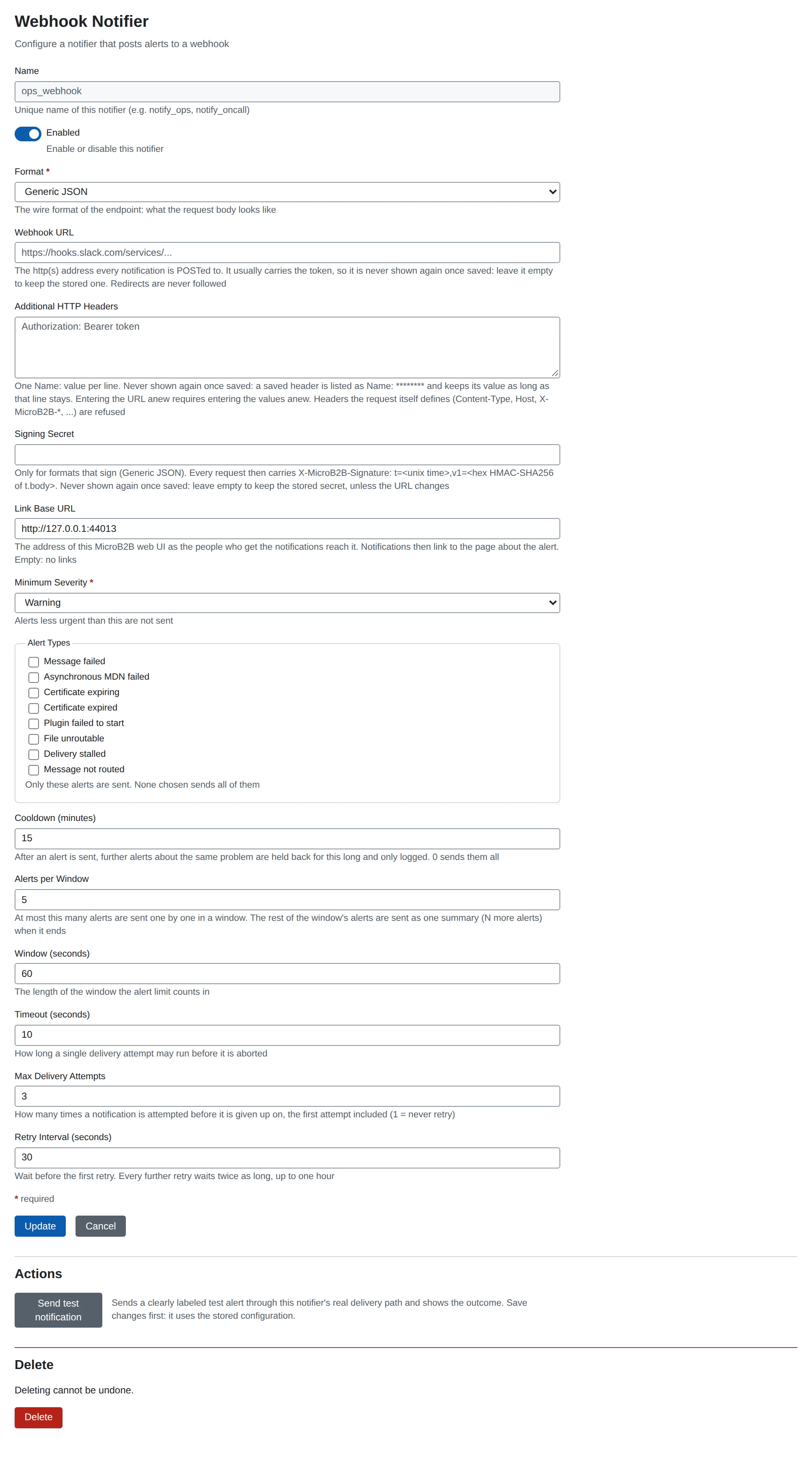
Settings
| Setting | What it does | Default |
|---|---|---|
| Name | The instance name. Lower case letters, digits, _ and -. | (required) |
| Enabled | A disabled notifier does not run. | on |
| Format | What the request looks like: Generic JSON, Slack, Microsoft Teams, Discord, Google Chat or ntfy. | Generic JSON |
| Webhook URL | The http or https address every notification is posted to. No user name or password in it. | (required) |
| Additional HTTP Headers | Extra headers, one Name: value per line, for example Authorization. | (none) |
| Signing Secret | Signs each request. Only for Generic JSON. See Notification webhooks. | (empty) |
| Link Base URL | The address of MicroB2B’s web UI as the recipients reach it. With it, notifications link to the page about the alert. Without it, there are no links. | (empty) |
| Minimum Severity | Alerts less urgent than this are not sent. | Warning |
| Alert Types | Only these alerts are sent. None chosen sends all. | (all) |
| Cooldown (minutes) | After an alert is sent, alerts with the same dedupe key are held back for this long. 0 turns it off. | 15 |
| Alerts per Window | At most this many alerts are sent one by one in a window. | 5 |
| Window (seconds) | The length of that window. | 60 |
| Timeout (seconds) | How long one attempt may take. | 10 |
| Max Delivery Attempts | Attempts in total, the first one included. | 4 |
| Retry Interval (seconds) | The wait before the first retry. Each later retry waits twice as long, up to one hour. | 10 |
The Link Base URL is a setting of the notifier because the notifier does not read MicroB2B’s PUBLIC_URL. Usually you enter the same address.
A changed notifier takes effect when you restart it on System > Services, or restart MicroB2B.
The secrets stay hidden
The webhook URL usually contains the token. So the URL, the header values and the signing secret are write-only. MicroB2B never shows them again once saved, not in the form, the REST API, the logs or the notification log.
- Leave the URL or the signing secret empty on an edit to keep the stored one.
- A saved header shows as
Name: ********. Keep the line to keep its value.
A new URL needs the secrets again. Whoever can edit a notifier could point it at their own server. So when you enter a new URL, enter the headers and the signing secret again too. MicroB2B refuses the save otherwise.
MicroB2B refuses headers that the request sets itself, such as Content-Type, Host, User-Agent and any X-MicroB2B- header. It also refuses headers that belong to the connection, such as Expect, Connection, Proxy- headers and Traceparent.
Cooldown and rate limit
These two settings keep a burst of alerts from flooding your channel.
- Cooldown: after an alert is sent, more alerts about the same problem wait. They are recorded as
suppressed_cooldownand not sent. - Rate limit: in each window, the first alerts go out one by one. The rest are held. When the window ends, they go out as one summary, such as “7 more alerts were held back by the rate limit”, with a count per type. Each held alert is recorded as
grouped.
Each notifier keeps this in memory. After a restart it forgets, so an ongoing problem may be notified once more.
How notifications are sent
Each attempt is one POST.
| Answer | What MicroB2B does |
|---|---|
| 2xx | Delivered. |
| 5xx, 408, 425 or 429 | Retries, with a doubling wait. |
| A timeout or connection error | Retries, with a doubling wait. |
| Any other answer, including a redirect | Failed. Trying again would not help. |
A notifier sends one notification at a time, the oldest first. A waiting notification survives a restart. A notification that waited more than 24 hours is not sent and ends as failed.
A notifier never raises an alert of its own. If your chat service is down, that alert would go to the same broken channel. Instead you see a log line and a failed row in the notification log. If a notifier cannot even start, the other notifiers deliver its plugin_failed alert. Watch the failed rows, or add a second notifier on another channel.
Send a test notification
The edit page of an enabled notifier has Send test notification. It sends one info alert, labelled as a test, through the notifier’s real path: format, headers and signature. It ignores the severity, type, cooldown and rate limit settings, and tries once. The page shows the outcome.
- The test uses the saved settings. Save first.
- The notifier must be running. After you create or change one, restart it first.
- If the notifier does not answer in time, it is enabled but not running. Check System > Services.
The REST API has the same: POST /api/v1/plugins/configs/notification-webhook/{name}/test.
Security notes
- The secrets are stored in the database. Protect the database and its backups.
- Error texts never name the address. A connection error reads
connection refused. - Use https URLs. For Generic JSON, check the signature.
The notification log
System > Notifications shows every alert a notifier sent or held back. See The notification log.