HTTP poster
An HTTP poster sends each message it gets to a web address, as an HTTP POST. Use it to hand documents to an ERP, an integration platform or any system with an HTTP endpoint. This page explains its settings and how it retries.
How it works
An HTTP poster is a target of a route. For each message, it posts one payload stage to its URL. Each attempt is a line in the message’s history.
| Answer | What MicroB2B does |
|---|---|
| 2xx | The delivery is done. |
| 5xx, 408, 425 or 429 | Retries later. |
| A timeout or connection failure | Retries later. |
| Any other answer, including a redirect | The delivery fails. MicroB2B never follows redirects. |
After Max Delivery Attempts, the delivery fails. The message then gets the status Error and MicroB2B raises the alert message_failed.
A retry is stored with the delivery, so it survives a restart.
Add an HTTP poster
- Go to Plugins > HTTP Posters and click + New HTTP Poster.
- Enter a Name, such as
poster_erp. - Enter the URL, such as
https://erp.example.com/inbound. - If the endpoint needs a login, fill in HTTP Basic Username and HTTP Basic Password, or add a header under Additional HTTP Headers.
- Click Create.
- Restart MicroB2B so the poster starts.
- Add a route from a source to the poster.
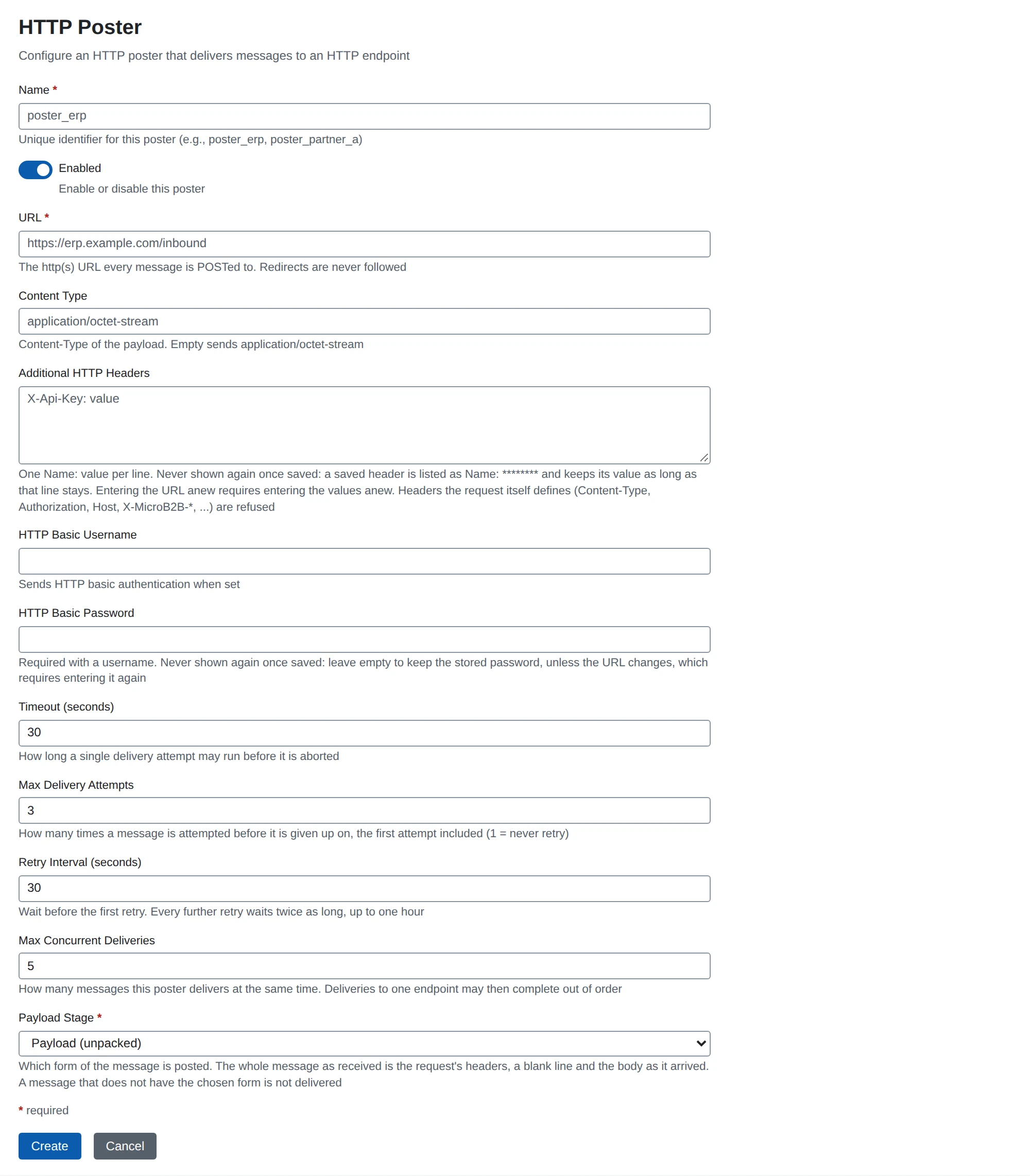
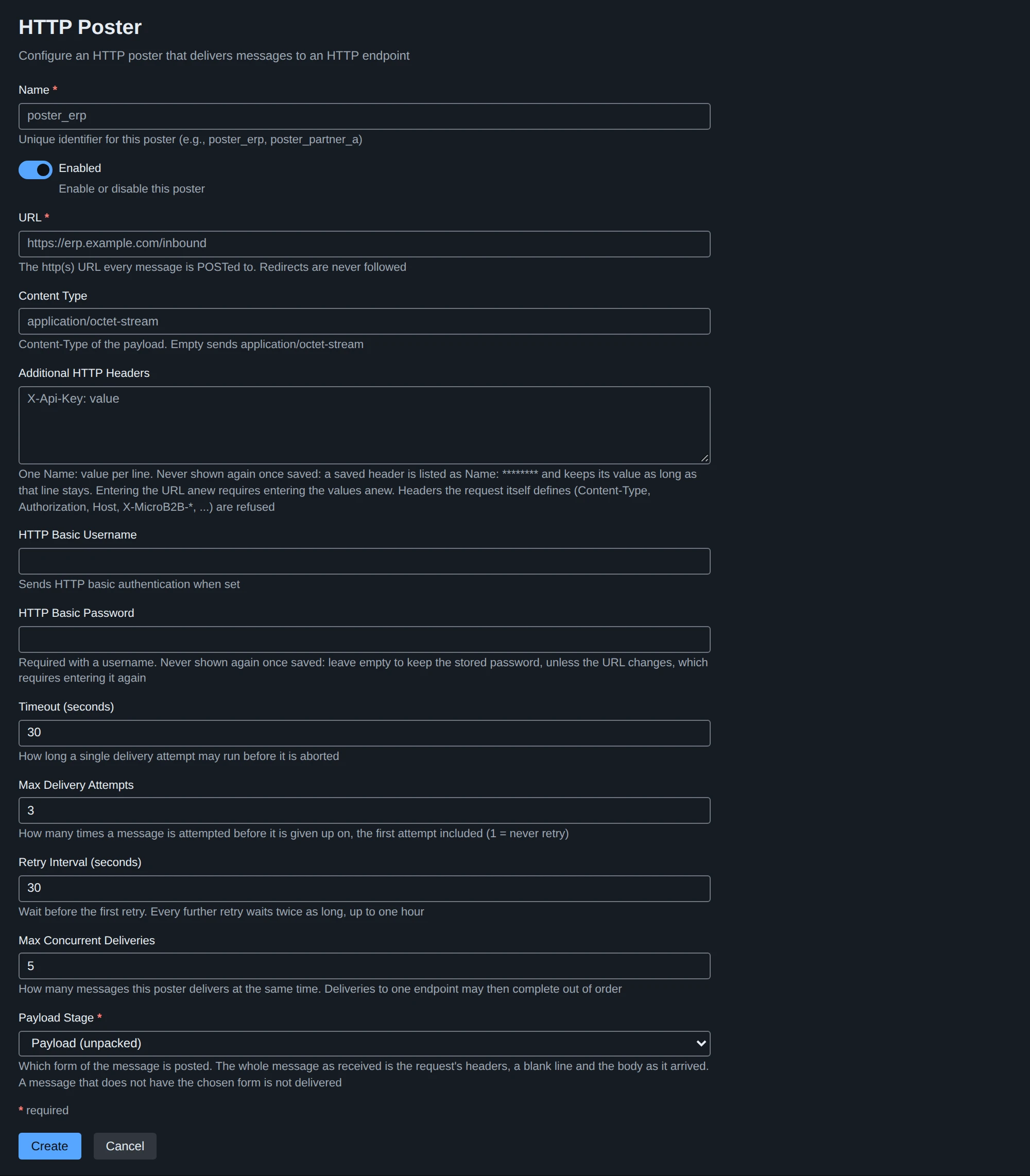
Settings
| Setting | What it does | Default |
|---|---|---|
| Name | The instance name. Lower case letters, digits, _ and -. | (required) |
| Enabled | A disabled poster does not run. | on |
| URL | The http or https address every message is posted to. | (required) |
| Content Type | The Content-Type of the request body. | application/octet-stream |
| Additional HTTP Headers | Extra headers, one Name: value per line. See below. | (none) |
| HTTP Basic Username | Sends HTTP basic authentication when set. | (empty) |
| HTTP Basic Password | The password. Required with a username. | (empty) |
| Timeout (seconds) | How long one attempt may take, 1 to 3600. | 30 |
| Max Delivery Attempts | Attempts in total, the first one included. 1 means never retry. | 3 |
| Retry Interval (seconds) | The wait before the first retry. Each later retry waits twice as long, up to one hour. | 30 |
| Max Concurrent Deliveries | Messages posted at the same time, 1 to 100. Messages may then arrive out of order. | 5 |
| Payload Stage | Which form of the message is posted. | Payload (unpacked) |
A changed poster takes effect when you restart it on System > Services, or restart MicroB2B.
Passwords and headers stay hidden
The password and the values of the additional headers often hold credentials. MicroB2B never shows them again once saved, and the REST API never returns them.
- Leave the password empty on an edit to keep the stored one.
- A saved header shows as
Name: ********. Keep the line as it is to keep its value. Remove the line to remove the header.
A new URL needs the secrets again. If you change the URL, enter the password and the header values again. Otherwise someone could point the poster at their own server and receive your credentials. MicroB2B refuses the save until you do.
Headers you cannot set
MicroB2B refuses headers that the request sets itself. Examples are Content-Type, Authorization, Host, User-Agent, Date and any X-MicroB2B- header. It also refuses headers that belong to the connection, such as Expect, Connection, Proxy- headers and Traceparent. Use HTTP Basic Username and Password for basic authentication. For a bearer token or an API key, use a header of the endpoint’s own, such as X-Api-Key.
What each request carries
Every request has these headers, so the receiving system knows what it gets:
| Header | Value |
|---|---|
Date | The time of this attempt |
X-MicroB2B-Message-Id | The message ID |
X-MicroB2B-Source | The instance that received or created the message |
X-MicroB2B-From | The sender’s name |
X-MicroB2B-To | The recipient’s name |
X-MicroB2B-Original-Message-Id | The original message ID, when known |
X-MicroB2B-Attempt | The attempt number, starting at 1 |
Use X-MicroB2B-Message-Id to recognize a message you already received. A retry or a Send again posts the same message a second time.
The User-Agent names MicroB2B. You can hide its version under System > Settings, see Settings.