Troubleshooting
This page tells you where to look first when something does not work, and what to include when you report a problem. The pages below cover specific problems:
- MicroB2B does not start, configuration that does not take effect, database and storage problems.
- Signing in and the REST API.
- Messages: files not picked up, messages not routed, stalled deliveries.
- AS2: sending problems: sending fails, a partner’s receipt is rejected.
- AS2: receiving and certificates: a partner’s message is refused, certificate problems.
Error texts in quotes on these pages are the exact texts MicroB2B shows or logs. Search the page for the text you see.
Start with the dashboard
The dashboard shows what is in flight and what failed recently. It also shows recent critical alerts, if you have set up a notifier. A figure is colored only when it needs your attention, so follow those first.
The message’s own page
Open Messaging > Messages and click the message. Its page shows:
- The status, such as Delivered, Retrying or Error. Messages explains each one.
- The Deliveries table: one row per target, with its state, attempts and last error.
- The history: each step with a time and a reason. A failure is almost always explained here.
- For AS2, the receipt (MDN) and how the message was protected.
- The stored content, which you can download per stage.
Filter the message list by status to find all messages with the same problem.
The Services page
System > Services lists every plugin instance and its state: Running, Stopped, Error (with the reason), Starting or Stopping.
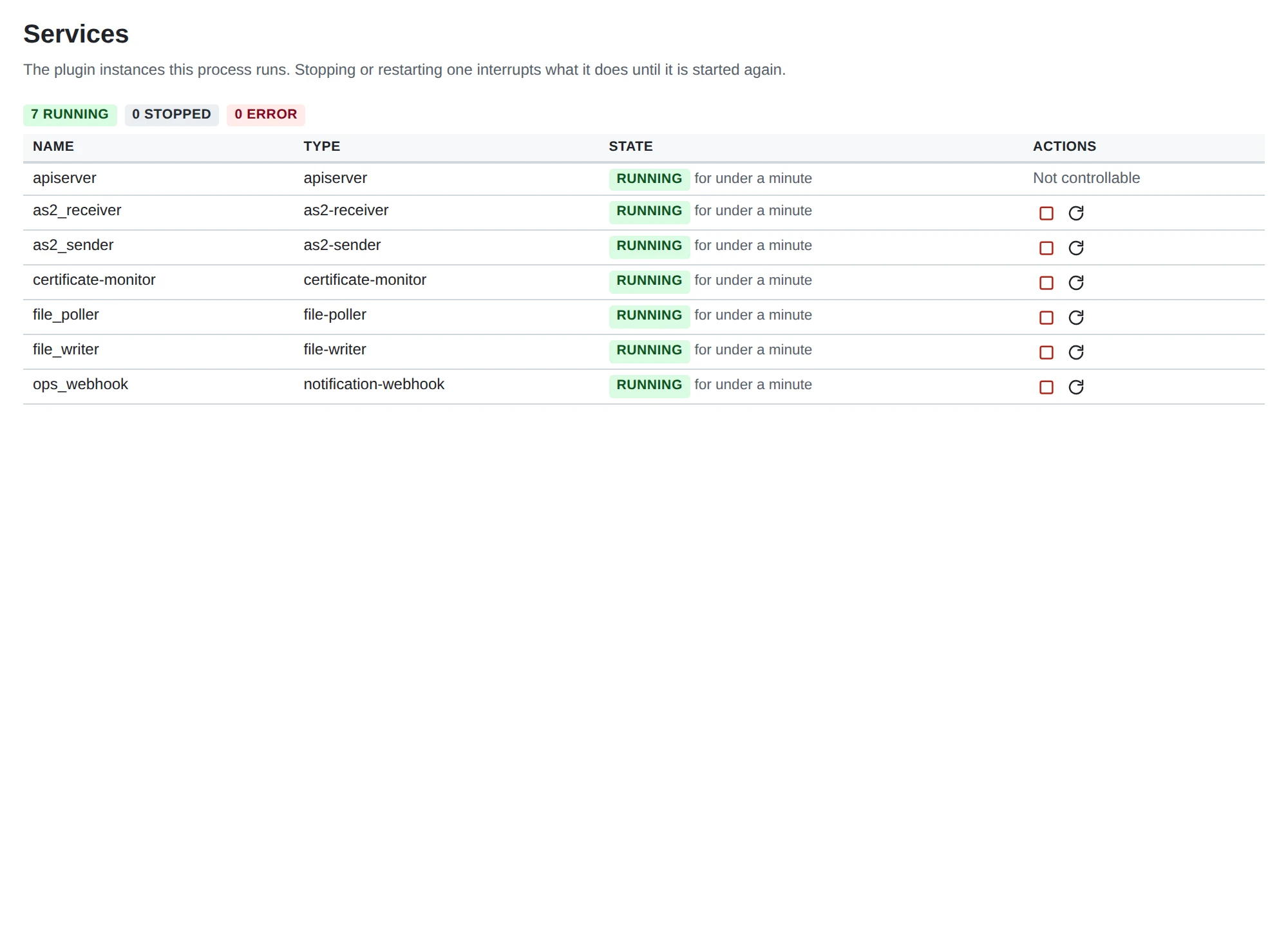
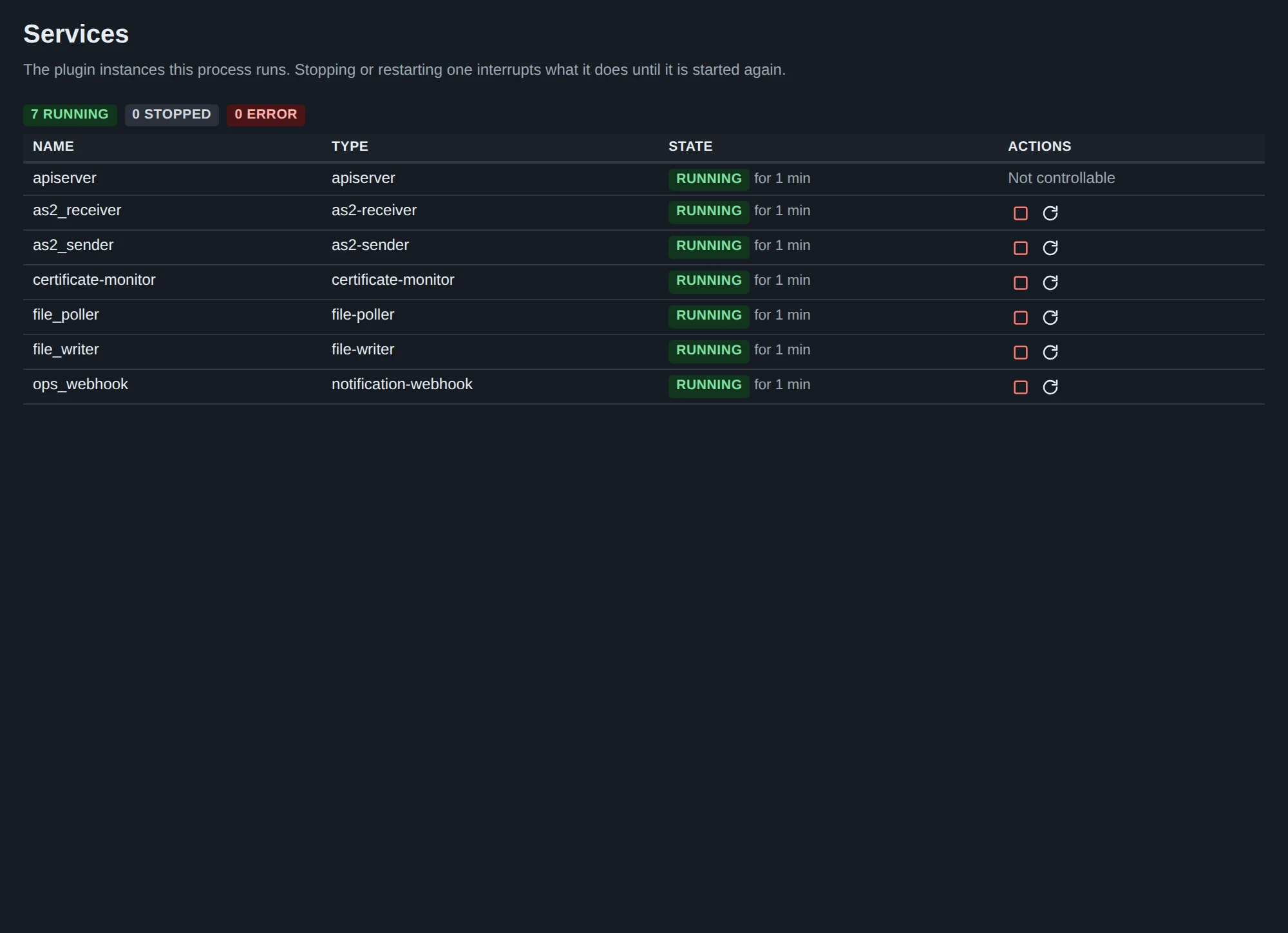
- Start, Stop and Restart buttons appear where they make sense.
- A start that fails raises a
plugin_failedalert, which links to this page. - A start that takes more than 30 seconds is reported as
start timed out after 30s. You can then stop or restart the instance. - The API server has no buttons. Stopping it from its own page would cut you off.
- The page refreshes itself every few seconds.
After you change a plugin instance’s settings, restart that instance here. An instance reads its settings when it starts. You do not need to restart all of MicroB2B.
The Logs page
System > Logs shows MicroB2B’s log as it happens. You can filter by level, by text and by message id.
- Every line about a message carries
message_id=<id>. Paste a message id into the Message filter to see only its lines. - For more detail, start MicroB2B with
LOG_LEVEL=debugandLOG_STREAM_LEVEL=debug. The second one makes the Logs page show debug lines too. BUNDEBUG=1also logs every SQL statement. Use it only for a short time.
The same log goes to standard error, so with systemd it is in the journal. See Monitoring.
Notifications
If you have set up a notifier, System > Notifications lists every alert it handled and whether it was delivered. Alerts tell you about failed messages, stalled deliveries, unroutable files, expiring certificates and plugins that failed to start. See Notifications.
Health check and statistics
GET /healthanswers without signing in. It says whether MicroB2B runs and reaches its database:curl http://localhost:8080/health # {"status":"healthy","timestamp":"...","database":"up"}GET /api/v1/statsneeds an API token. It returns the state of every plugin instance. See API basics.
Reporting a problem
When you ask for help, include:
- The MicroB2B version. It is at the bottom of every page after you sign in.
- How you run MicroB2B: systemd or a container, SQLite or PostgreSQL, local or S3 storage, behind which reverse proxy.
- The failing message’s page: its status, history, deliveries and, for AS2, the receipt section.
- The log lines about it: on System > Logs, filter by the message id.
- The settings of the plugin instances and AS2 profiles involved.
Remove secrets first. Never share passwords, API tokens, header values, webhook URLs, SESSION_KEY, SECRETS_KEY or private keys. Certificates without their keys are safe to share.